
 By
By 
Microsoft Azure is a complete cloud computing platform that provides a variety of services for developing, deploying, and managing applications and services across Microsoft-managed data centers. It offers solutions in computing, storage, networking, databases, analytics, and artificial intelligence, among other areas.
If you’re just getting started with Azure, this tutorial will help you get set up and customized according to your preferences.
Before starting, ensure you have:
- An active Azure subscription.
- A basic understanding of Azure cloud and its services.
Setting Up Your Azure Environment
Creating an Azure account
- 1. Visit the Azure portal
The first thing you’ll need to do is visit the Azure Portal.
- 2. Sign up
Since this is the first time accessing the portal, you will need to create an Azure account.
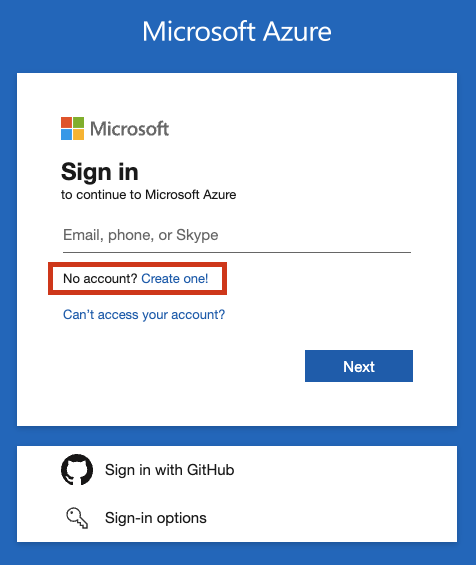
It’s worth noting that you can only create an Azure account using a Microsoft email address. If you don’t have a Microsoft email address, you will need to sign up for one.
If you do have a Microsoft address, fill in the details to continue the process. You might need to fill in some other details like your birthday and be asked to resolve various puzzles so that the system determines you are human.
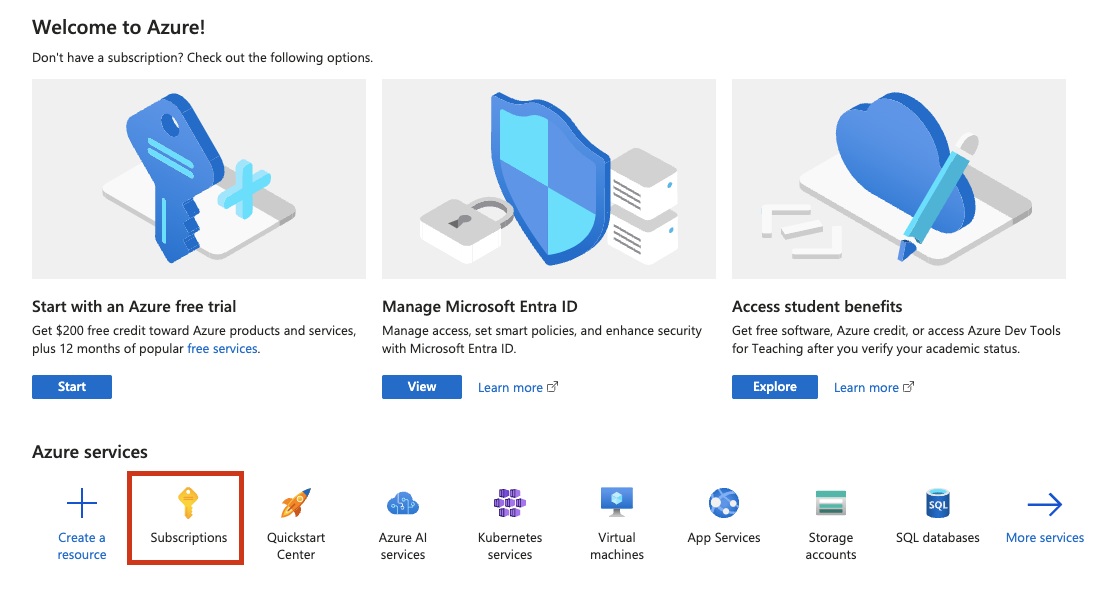
Once the signup process is complete, you will be prompted with the Azure portal home screen.
- 3. Add a subscription
To start using the portal to create and interact with Azure services, you first need to set up an Azure subscription.
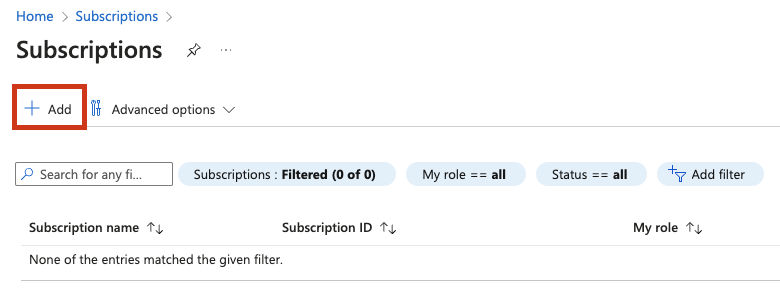
An Azure subscription holds the details of your Azure resources, including the associated cost. You can navigate to the Subscriptions page and click on the ‘Add’ button to add a new subscription.
You can select a free trial that will enable you to explore Azure services or you can choose Pay-As-You-Go (meaning you will pay for any services you use on a consumption basis).
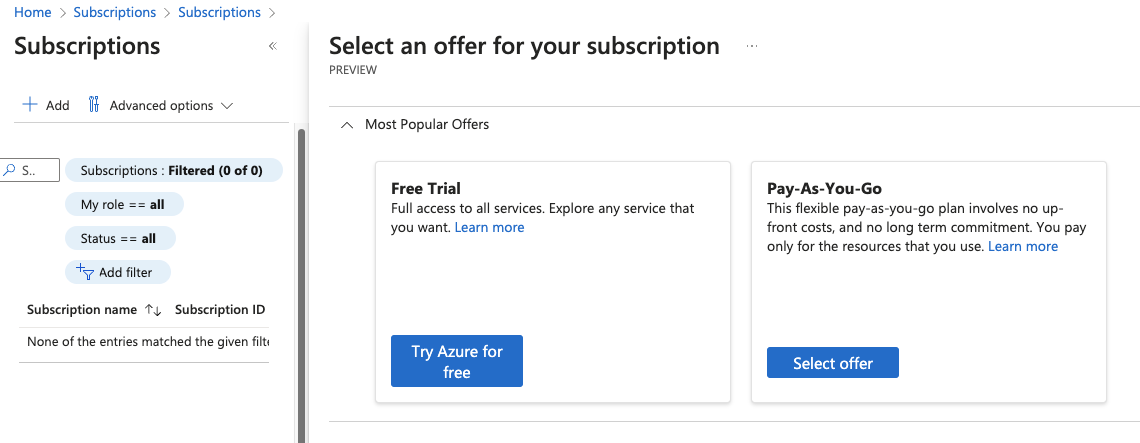
You will need to provide billing information. Once the process is complete, your new subscription will appear in the list. With a subscription, you can now create and use Azure resources and services.

Navigating The Azure Portal
Now that you’re all set up with your login and subscription, it’s time to start finding your way around the Azure portal
Azure portal key elements
- 1. Homepage
When you access the Azure portal for the first time or press the Home button, you will be taken to the Azure home page.
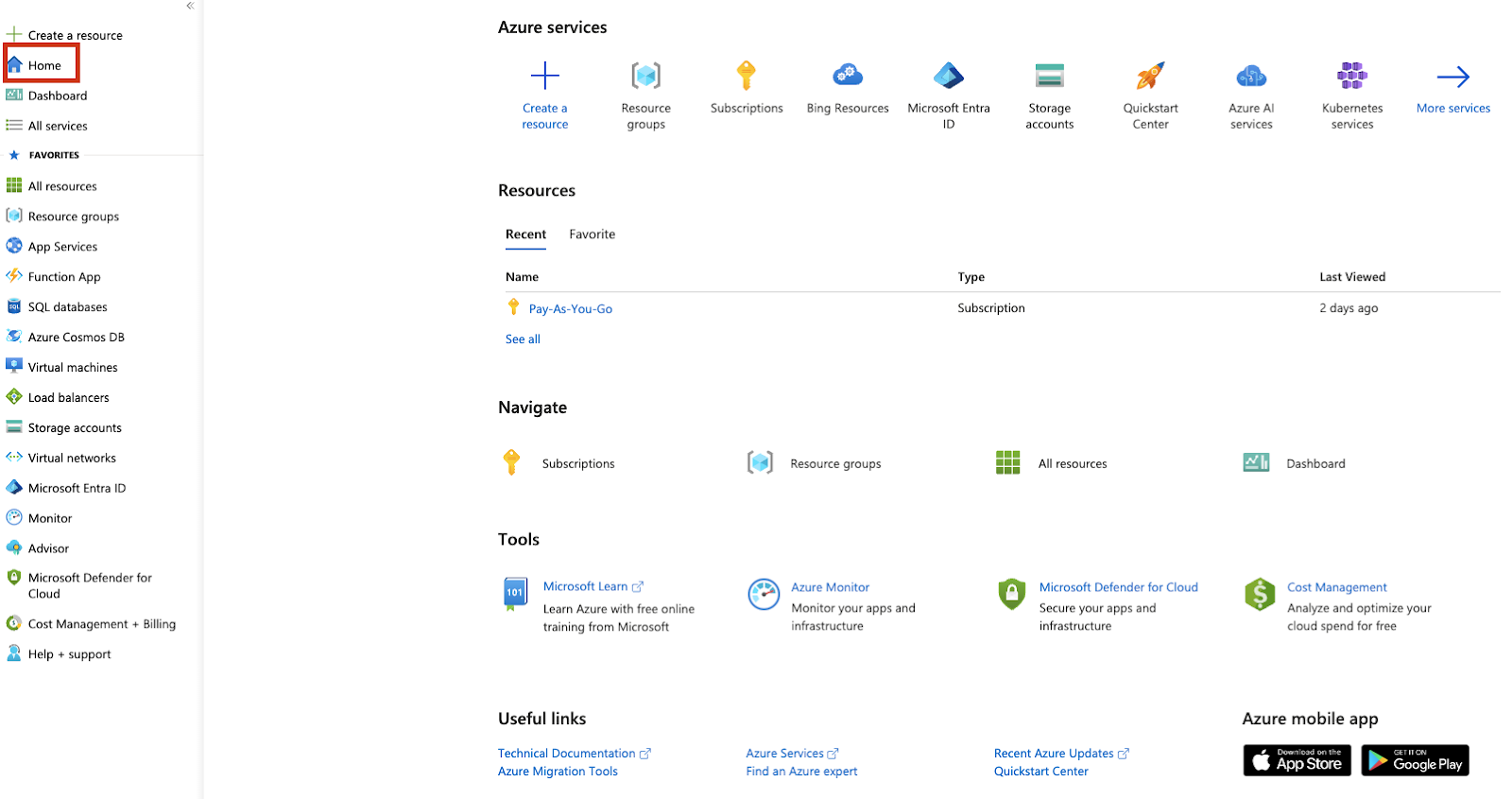
This page is an overview of the most important topics you can find in an Azure subscription. It includes links to core services, documentation, online courses, mobile apps, and other useful websites.
- 2. Azure portal header
The portal header is a key element of Azure’s website and will always be present no matter the screen you find yourself in.

It includes a shortcut to the homepage in the form of Microsoft Azure text logo and a global search bar.
The global search bar can be used to look for existing resources or help you find a service you intend to start using.
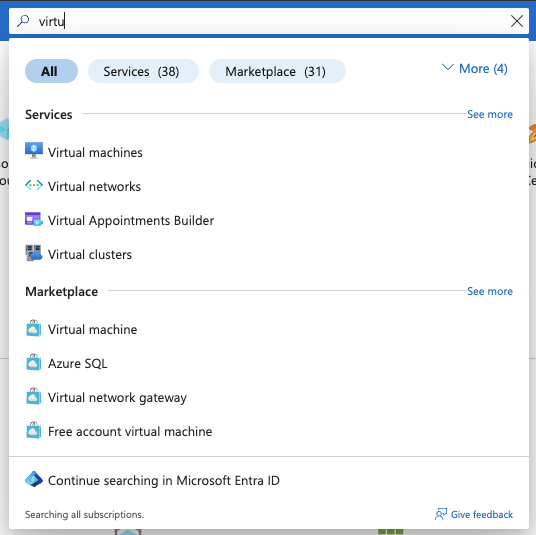
On the most right hand side you will find a couple of useful tools and a quick info about the account currently used and the current directory. This section is known as Global controls.

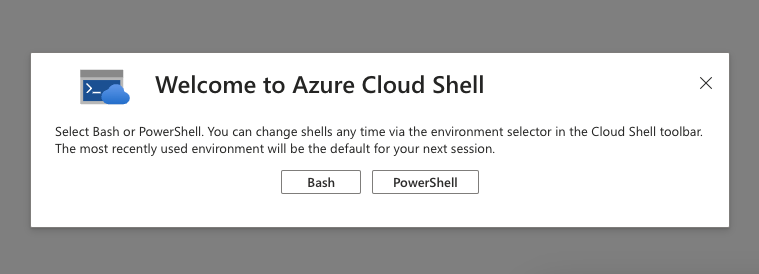
Available tools include Azure Cloud Shell, which is a command line tool that enables you to interact with Azure services programmatically.

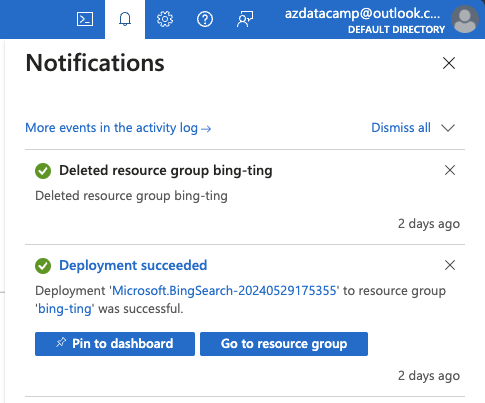
Another tool listed is the Notifications pane, which keeps a short history of your interaction with Azure resources in terms of creation, modification, or removal.
The next three icons represent the portal settings, Azure’s support service (in case you need to contact Microsoft for Azure-related challenges), and the feedback form that allows you to rate your experience with the portal.
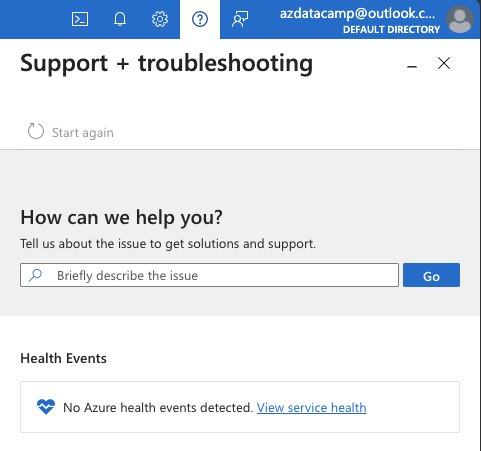
We will look at the Azure portal settings in more detail later on in the article.
- 3. The portal menu and favorites
The portal menu lets you access key functionalities and favorite resources.
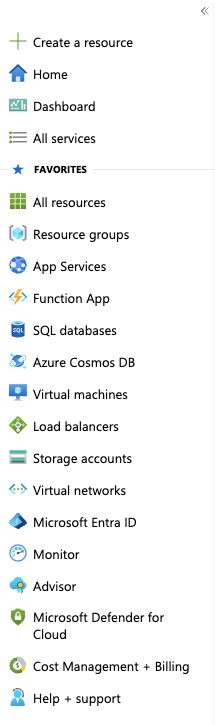
Key functionalities include quick creation of resources, navigating to the home page, accessing Dashboard or browsing all available Azure services.
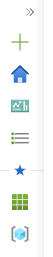
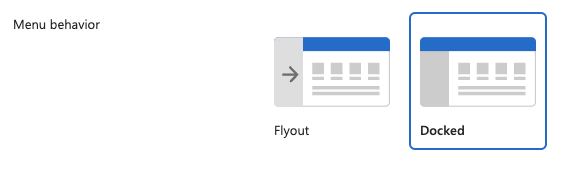
You can have it docked so it’s always present, or you can collapse it to leave more room on the page for other information.

- 4. The resource menu
Whenever you are working with Azure resources, you will notice a secondary menu.

This is called the resource menu, and it offers all the necessary means to get information and interact with the resource. It offers details about the resource, its configuration, its properties and integration, and access to various tools and analytics.
Read Also: AWS vs Azure vs Google Cloud: A Detailed Comparison
The options available depend on the resource type. In some documentation or materials, you might also find the term “blade”. It is a synonym of the various menu options in the resource menu. For example, the screenshot above shows the Overview blade output.
Dashboard
What is the Dashboard?
The dashboard is a type of widget centralized screen where you can select details about the resources in your subscription that matter most to your needs. Microsoft offers a default dashboard, but you can create and customize dashboards of your own.

You can also share your dashboards with other people in the organization, making them particularly useful for teams or groups that need the same type of access to important information.
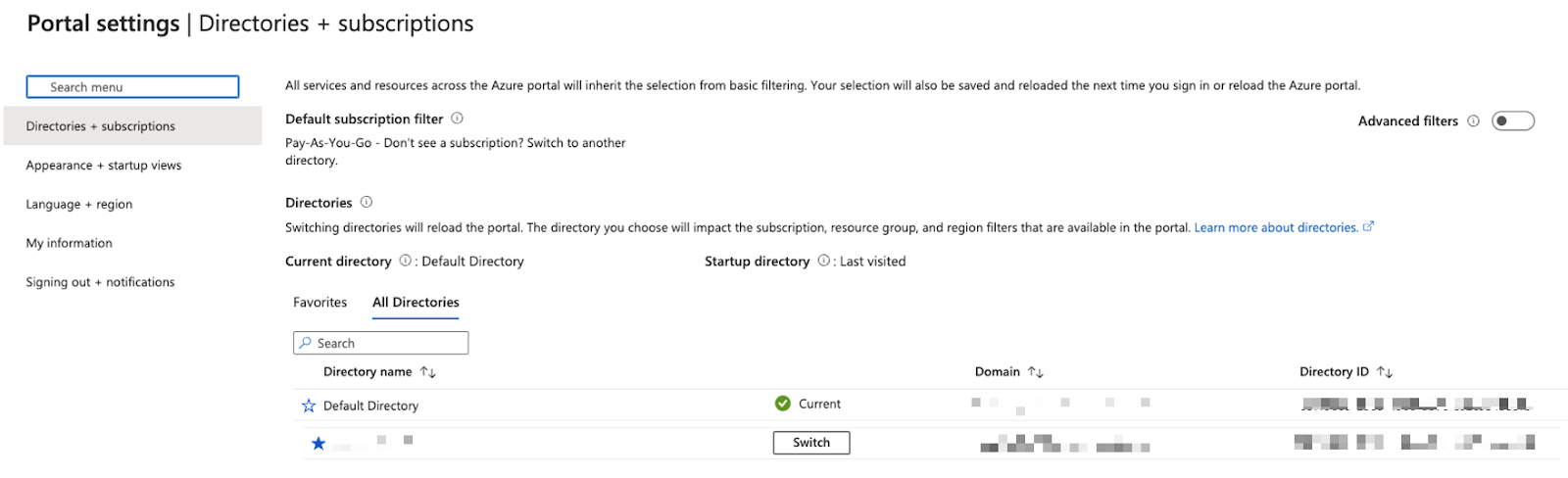
Directory
What is an Azure directory?
An Azure directory refers to a Microsoft Entra ID entity. Microsoft Entra ID is a cloud-based identity and access management service that is used to allow, deny, and control access and permissions to all resources and services within Azure.
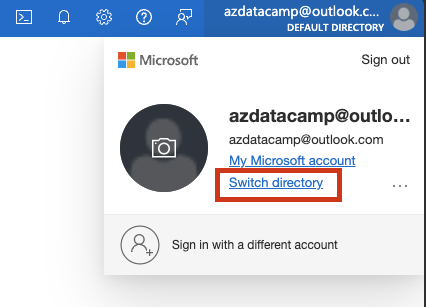
When you first sign up for Azure, a default directory will be created for you. If your user account has permissions in multiple Azure directories, you can switch between them by using the upper right side section in the portal.
Customizing Your Azure Portal Experience
Now that you’re familiar with Azure’s key features let’s look at how you can configure it to your preferences.
Azure portal settings
- 1. Reaching the settings page
One of the options available on the upper right side (in Global controls) is the Azure settings.

This will open up an Azure page where you can configure generic settings of the Azure portal appearance and behavior.
- 2. Configure Directories + subscriptions
We already had a glance of this first option. This is where you can see all available directories your account is part of.
Additionally, you can create filters and configure the starting directory, which will redirect you to different configuration pages.


- 3. Configure Advanced filters
Please note that this menu option will only be visible when you have permissions to multiple subscriptions. This menu can be useful if you want to view resources only from certain subscriptions, management groups, or from subscriptions in a certain state.
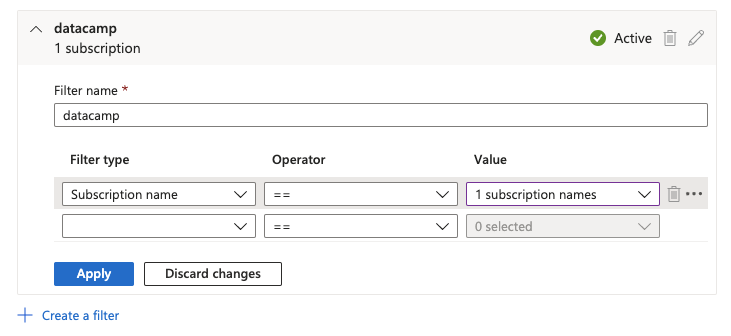
If there are subscriptions you rarely work with, you might choose to hide them from the list of resources to avoid confusion or mistakes.
- 4. Configure Appearance + startup views
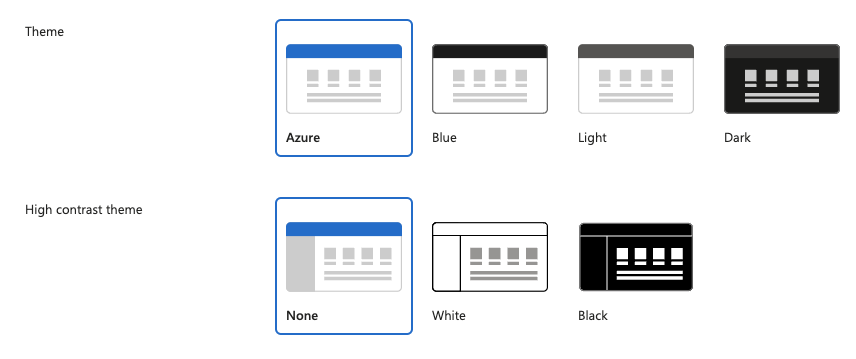
Here, you can configure a variety of options about the portal’s behavior and appearance. You can choose if the portal menu should be docked or showing up only clicked (Flyout).
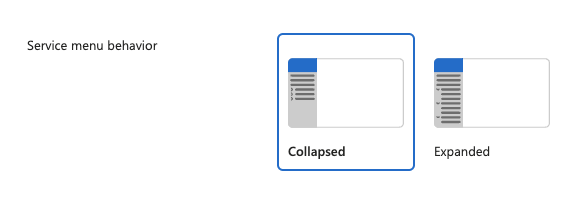
You can choose whether the resources menu is collapsed or expanded.
You can choose various themes for the portal colors.
You can also choose what should be the default page when accessing Azure portal; it can be the home screen or a dashboard.

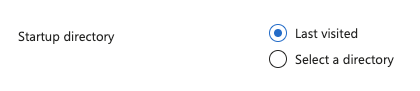
This is also the page where you can configure the starting directory: it can always be the same one you choose (a selected directory) or the last one visited. This menu option will be available only when you have access to multiple directories.
- 5. Configure language and region
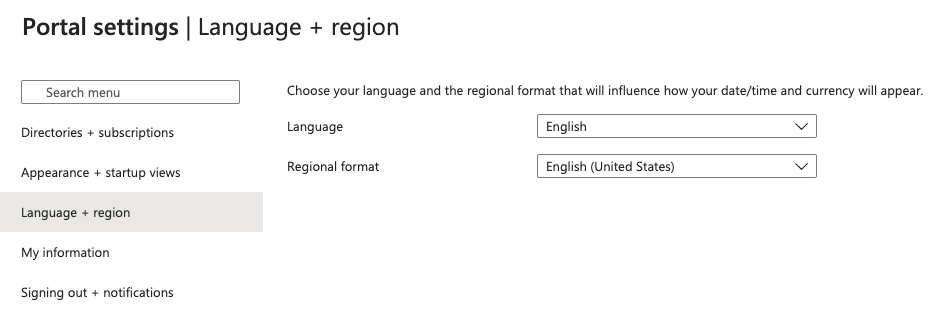
This section is straightforward enough, allowing you to select the language of Azure portal and the regional format for dates, numbers, etc. This is largely down to your preference and there are several options available.
- 6. Configure My information
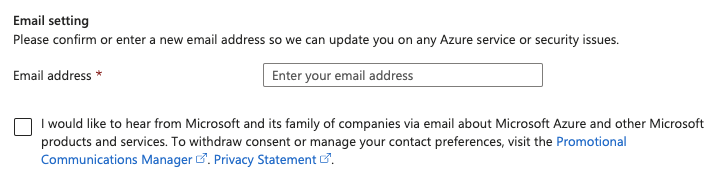
This is a section intended for communications and personalized tips. When there are outages or security issues in Azure, your email address will be used by Microsoft to reach out and inform you about affected services.
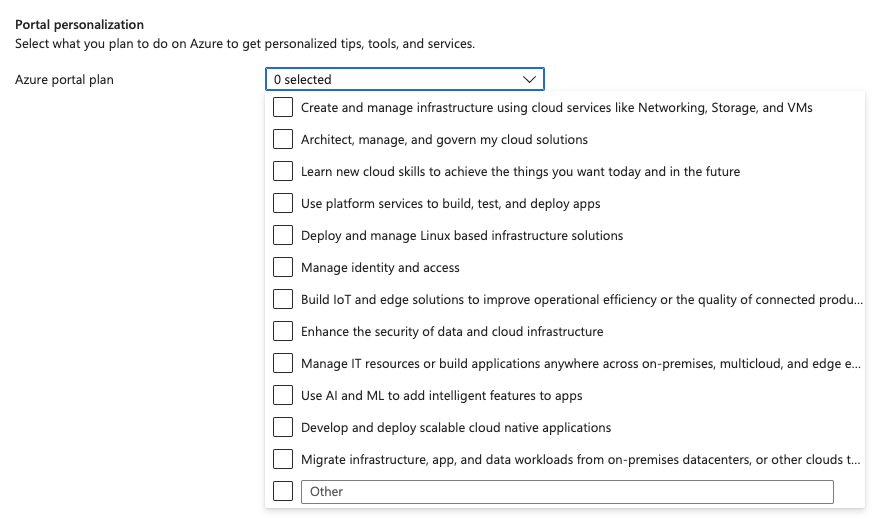
One handy feature here is the portal personalization, which can help you and your team be more productive. You can select what you plan to do with Azure, and it will generate tips, tools, and services to help you.
- Configure Signing out and notifications
The last option in the Azure portal settings enables you to configure session timeouts for account inactivity.
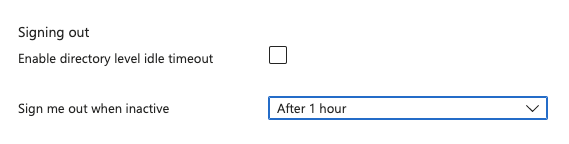
It is always a good idea to enable session timeout to keep your account and resources secure. If you are a Global administrator in the Azure portal, you can also enable directory-level timeout that will apply to all users.
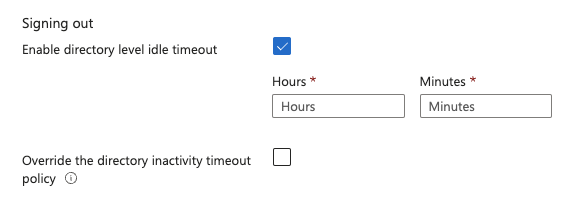
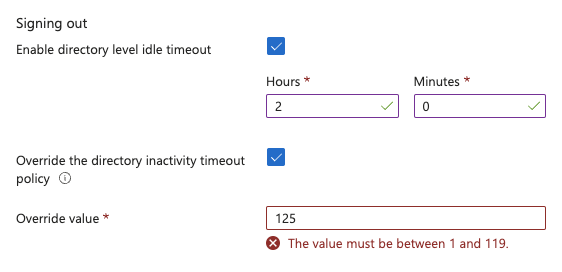
As you can see, individual users can still override the timeout policy, but there’s a catch there. They cannot set a more relaxed policy, only a more restrictive one.
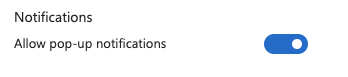
The last setting here is about notifications that are visible in the portal. We’ve mentioned earlier that some information about resource interaction will be shown in the form of notifications.

The option to see these messages or not is configurable through this switch.
By following the steps above, you should be able to navigate Azure with confidence. For some additional information, check out the tips below:
Regularly monitor billing: Keep an eye on your Azure spending by regularly checking the billing section to avoid unexpected charges.
Take advantage of Azure documentation: The Azure documentation is an excellent resource for learning more about specific services and best practices.
Join Azure communities: Engaging with communities like Microsoft Q&A or Stack Overflow can provide additional support and insights.
How to Start Learning Azure
The first step is to create your Microsoft account and activate Azure. This is your gateway to exploring and using what Azure has to offer.
Setting up an Azure Storage account
To get started with Azure, just like any other online service, the first thing is creating an account and signing in. You will find a step-by-step guide to do so:
- Step 1: Sign in to the Azure Portal
Sign in to your Azure account at portal.azure.com.
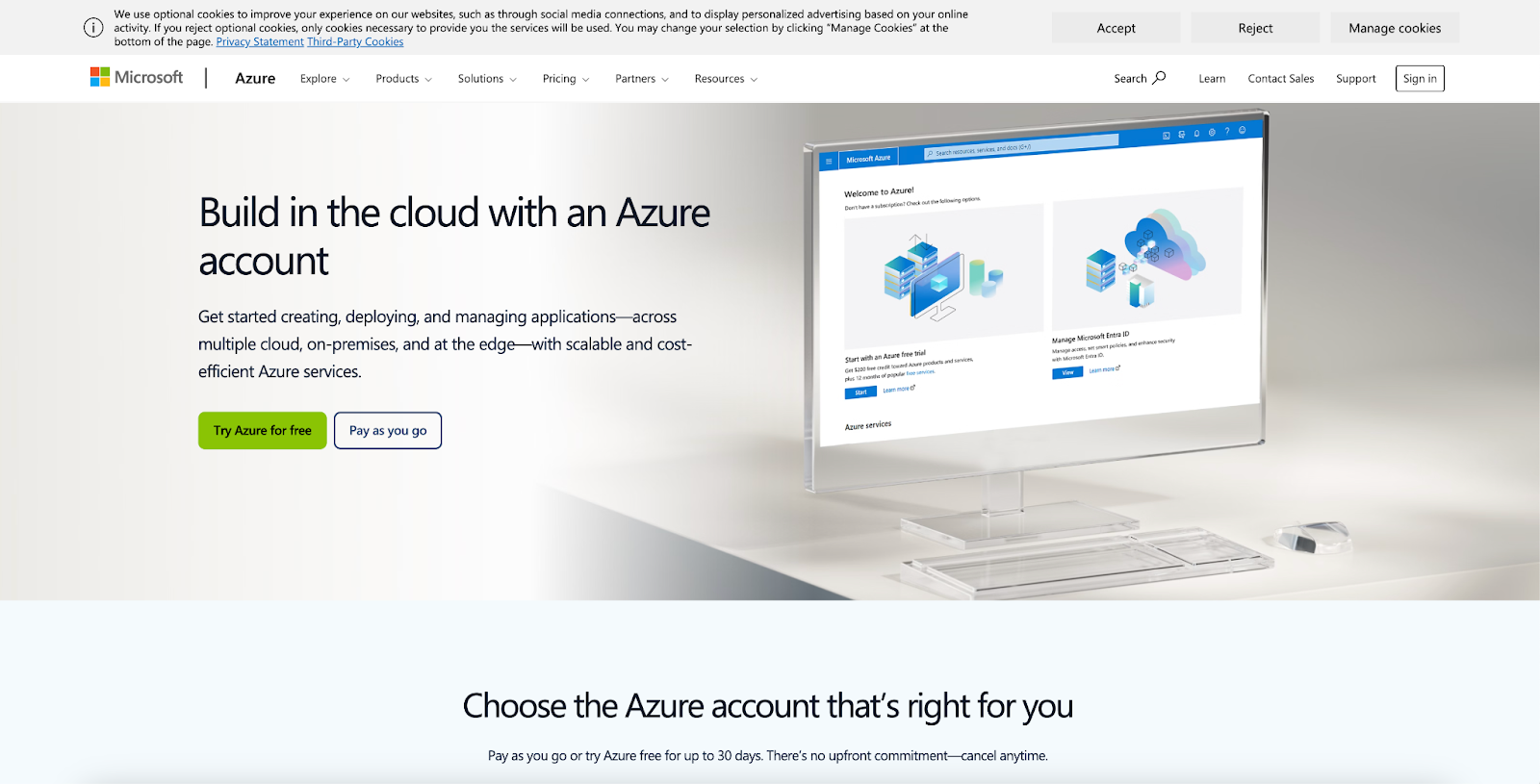 Screenshot of Azure landing website.
- Step 2: Add your billing information and your details
Once you click on the Get Started button, you will have to share your details (including name, surname, and billing information) to activate your account.
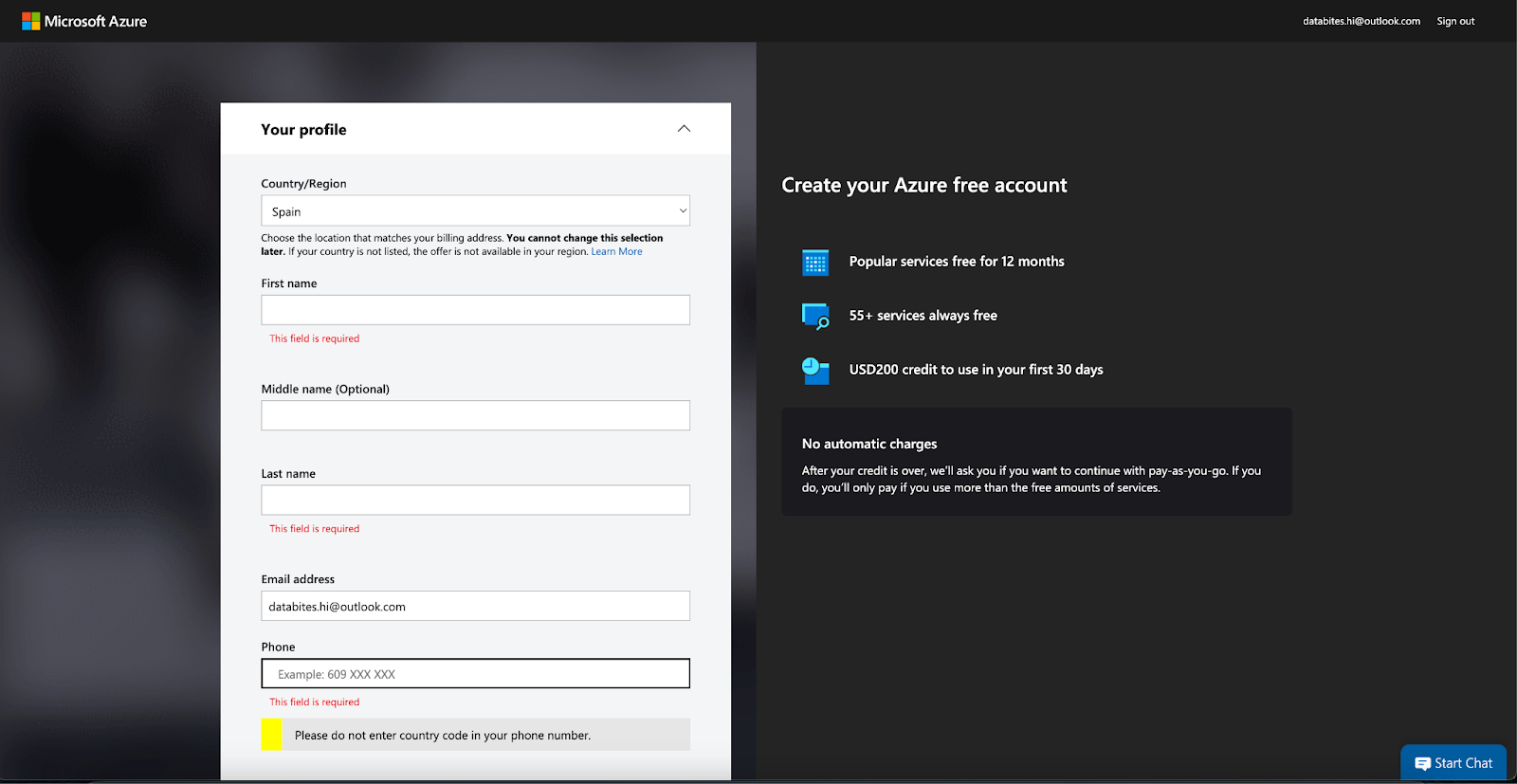
Screenshot of Azure landing website. Image by Author
Once you have an active account, you will get into your Azure main view. You should see something similar to the following image.
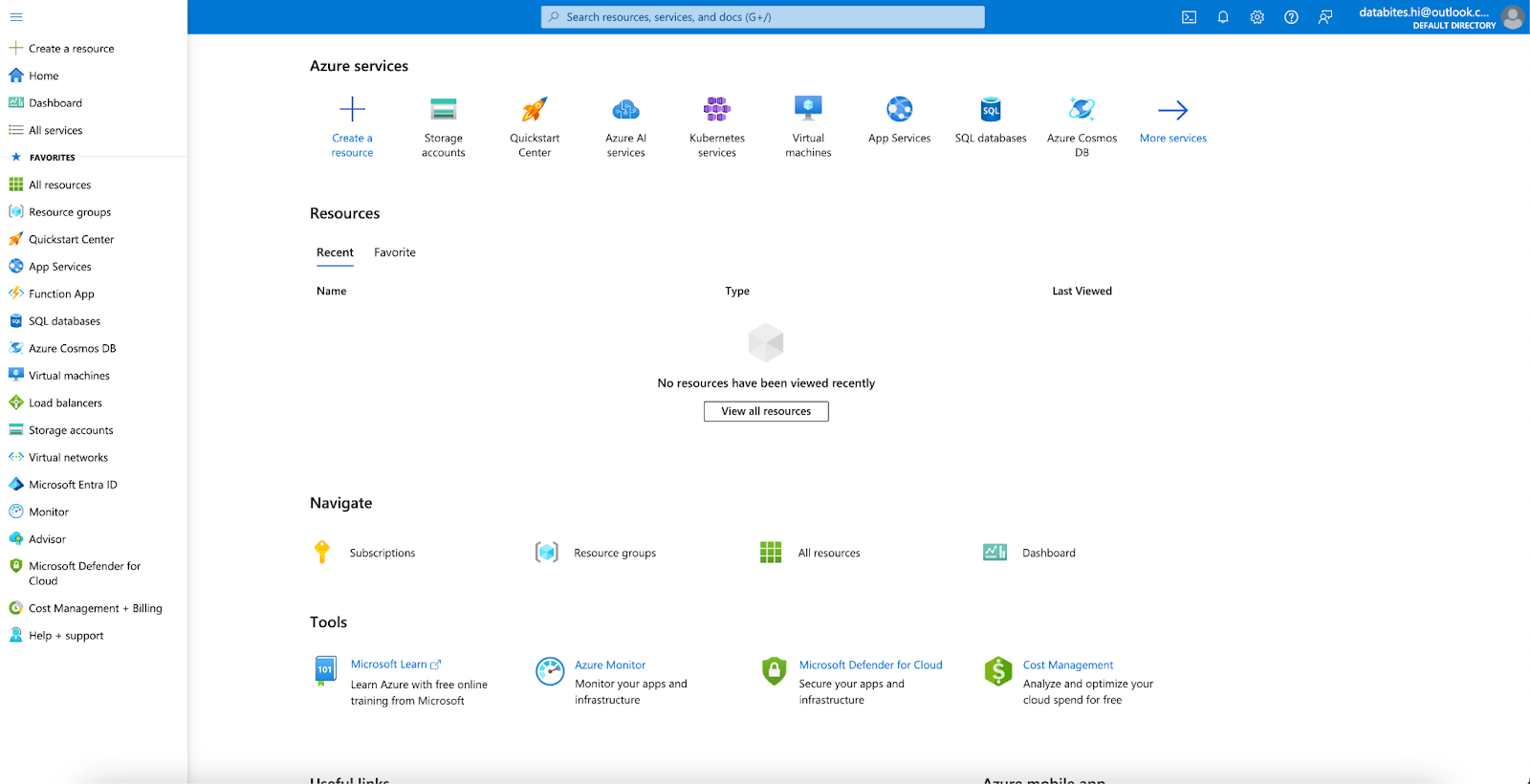
Screenshot of Azure main view. Image by Author
Begin with the Azure Portal
Once your account is set up, log in to the Azure portal, the central hub for managing your Azure resources. Familiarize yourself with:
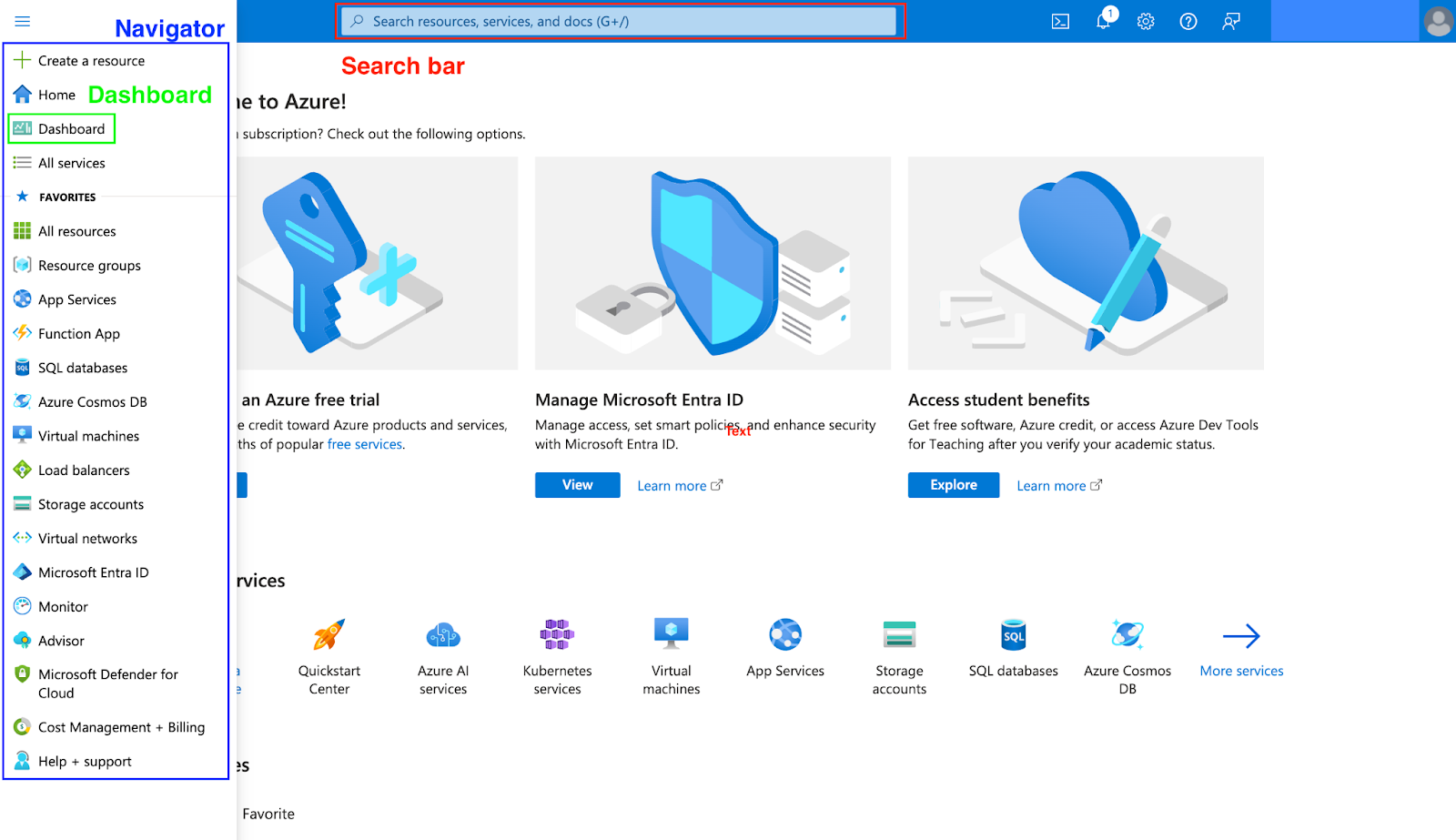
Azure main view with Menu Navigator, the Dashboard, and the Search Bar. Image by Author.
- Dashboard: Customizable to show your key resources and metrics.
- Menu Navigation: Access services like Virtual Machines, Storage, and Databases using the navigator of the azure website.
- Search Bar: Quickly find tools or services.
Learn core concepts
Now it’s time to make sure you understand Azure fundamental concepts. Start with these:
- Subscriptions: Define the billing scope and resource management.
- Regions: Explore Azure’s global data centers and select regions based on your needs.
- Resource Groups: Organize resources logically for easier management and tracking ordered in resource groups.
With your goals defined and foundational knowledge in place, you’re ready to start building your expertise.
Azure Learning Pathway
Step 1: Master Azure fundamentals
- Azure Core Services
Microsoft Azure provides a variety of core services for various business needs, including compute, storage, and networking. To help you get started, we’ve compiled a list of the eight most important Azure services.
1. Azure Virtual Machines (VMs): Virtual Machines are Azure’s core computing resource, allowing users to run applications in the cloud without owning physical servers.
- Key Uses: Development and testing environments, hosting web apps, and processing high-performance tasks.
- Why It’s Important: VMs provide flexibility, scalability, and control over configurations like memory, CPUs, and storage.
2. Azure App Services: Azure App Sercices is a platform-as-a-service (PaaS) for hosting web applications, RESTful APIs, and mobile app backends.
- Key Features: Supports multiple programming languages, integrates with DevOps tools, and offers autoscaling for traffic spikes.
- Why It’s Important: Simplifies web and app development by managing infrastructure, enabling developers to focus on coding.
3. Azure Blob Storage: Azure Blog Storage is a scalable object storage service for unstructured data like images, videos, and backups.
- Key Uses: Content delivery, data archiving, and disaster recovery.
- Why It’s Important: Offers tiered pricing for cost efficiency and integrates seamlessly with other Azure services.
4. Azure SQL Database: Azure SQL Database is a fully managed relational database service for applications requiring scalable and secure data storage.
- Key Features: Automated scaling, advanced security, and performance monitoring.
- Why It’s Important: Ideal for businesses needing a reliable database solution with minimal maintenance.
5. Azure Active Directory (Azure AD): Azure AD is a cloud-based identity and access management service that centralizes user access across cloud and on-premises applications.
- Key Features: Single sign-on (SSO), multi-factor authentication, and secure access control.
- Why It’s Important: Enhances security while simplifying identity management for organizations.
6. Azure Kubernetes Service (AKS): AKS is a managed service for deploying and managing containerized applications using Kubernetes.
- Key Uses: Running microservices, scaling workloads, and implementing DevOps practices.
- Why It’s Important: Simplifies Kubernetes management, allowing teams to focus on app development.
7. Azure Functions: Azure Functions are a serverless compute service that runs event-driven code in response to triggers like HTTP requests or database changes.
- Key Uses: Real-time data processing, scheduled tasks, and lightweight API development.
- Why It’s Important: Allows efficient execution of small code snippets without managing servers.
8. Azure Cognitive Services: Azure Cognitive Services is a collection of AI tools and APIs for adding intelligent features like facial recognition, natural language processing, and speech analysis to applications.
- Key Uses: Creating smarter, user-centric applications with minimal AI expertise.
- Why It’s Important: Democratizes AI for developers, enabling rapid integration of advanced capabilities.
Azure CLI and PowerShell:
Once you’re familiar with the core services, mastering Azure’s management tools can significantly enhance your efficiency and productivity.
- Azure CLI: A cross-platform command-line tool for managing Azure resources, ideal for automating tasks and integrating with CI/CD workflows.
- Azure PowerShell: A scripting tool for Windows environments, enabling advanced automation and unified management of Azure and on-premises resources.
By combining foundational knowledge of Azure’s core services with powerful management tools like CLI and PowerShell, you’ll be well-equipped to optimize your Azure experience and streamline cloud operations.
Step 2: Get hands-on with Azure
The best way to start learning a new skill is by doing, and Azure is no exception. Once you’ve mastered the basics, the next step is to start building real-world projects. These projects not only solidify your knowledge but also contribute to a portfolio that demonstrates your skills and growth.
- Building your portfolio with Azure projects
Below are project recommendations based on skill levels to help you get started:
- Beginners
Start simply by setting up a virtual network or deploying a basic app. For instance, deploying a Basic Web App.
Overview: Deploy a simple web application using Azure App Service. This project involves creating a basic HTML or ASP.NET app and publishing it to Azure.
Steps:
- Set up an App Service plan.
- Adjust application settings.
- Deploy your code through Azure DevOps or GitHub.
Intermediate
Challenge yourself by building a multi-tier application, integrating databases, or experimenting with Azure IoT Hub. For instance, Setting Up an SQL Database.
Overview: Set up and configure an Azure SQL Database to familiarize yourself with SQL and database management in Azure.Steps:
- Create an SQL Database server.
- Set up database instances.
- Perform tasks like creating tables, adding data, and running queries.
- Learn to scale and manage databases effectively.
Advanced
Tackle complex projects like creating a scalable web app with Kubernetes or building an end-to-end data pipeline. For instance, Developing a Big Data Solution
Overview: Build a big data solution using Azure Synapse Analytics to analyze large datasets and generate insights.
Steps:
- Set up a data lake to store vast amounts of data.
- Use Synapse Analytics for data processing.
- Build dashboards for data visualization.
Showcasing your skills
Documenting and presenting your projects is just as important as building them. Use GitHub or a personal website to:
- Provide detailed descriptions of each project, including objectives, tools used, and outcomes.
- Share code repositories with clear documentation to make them accessible to others.
- Include visuals such as screenshots, diagrams, or dashboards to illustrate results.
- Write a blog post or project summary to highlight challenges, solutions, and key learnings.
By combining hands-on experience with a polished portfolio, you’ll effectively demonstrate your expertise and stand out in the competitive Azure ecosystem.
Step 3: Deepen your skills in specific services
We already saw Azure has a wide range of certifications. This is why, there are multiple sources for each of them.
Recommended resources to get started
Here are some recommended resources. We divided these by role, so please scroll to the role that interests you most.
1. Infrastructure roles
| Category | Details |
|---|---|
| Certifications | Azure Administrator (AZ-104) Solutions Architect (AZ-305) |
| Learning Paths | Azure Administrator Learning Path Azure Solutions Architect Learning Path |
| Books | Exam Ref AZ-104 Microsoft Azure Administrator by Harshul Patel Exam Ref AZ-305 Designing Microsoft Azure Infrastructure Solutions by Santiago Fernández Muñoz |
| Practice Labs | Use platforms like Whizlabs or A Cloud Guru for hands-on infrastructure tasks. |
2. Data & AI Roles
| Category | Details |
|---|---|
| Certifications | Data Engineer (DP-203), AI Engineer (AI-102) |
| Learning Paths | Azure Data Engineer Learning Path Azure AI Engineer Learning Path Introduction to Data Engineering course by DataCamp |
| Books | Exam Ref DP-203 Data Engineering on Microsoft Azure by Daniel A. Seara and Francesco Milano Exam Ref AI-102 Designing and Implementing an Azure AI Solution by Pablo Alejandro Garcia and Julius G. Gidwani |
| Hands-On Resources | Azure Machine Learning Studio Tutorials Data Engineering labs from Databricks Academy |
3. Development Roles
| Category | Details |
|---|---|
| Certifications | Developer Associate (AZ-204), DevOps Expert (AZ-400) |
| Learning Paths | Azure Developer Associate Learning Path Azure DevOps Expert Learning Path DevOps Concepts course by DataCamp |
| Books | Exam Ref AZ-204 Developing Solutions for Microsoft Azure by Santiago Fernández Muñoz Exam Ref AZ-400 Designing and Implementing Microsoft DevOps Solutions by Guruprasad Venkatraman and Steve Ross |
| Hands-On Resources | GitHub repositories with Azure CI/CD examples Build cloud-native apps with Microsoft’s Azure App Services Guide |
4. Business Applications
| Category | Details |
|---|---|
| Certifications | Power Platform Developer (PL-400) Dynamics 365 Certifications |
| Learning Paths | Power Platform Developer Learning Path Dynamics 365 Certification Learning Paths |
| Books | Microsoft Power Platform Functional Consultant Exam Ref PL-200 by Julian Sharp Exam Ref MB-300 Microsoft Dynamics 365 Core Finance and Operations by Faisal Akkawi |
| Hands-On Resources | Explore Microsoft Learn Power Platform modules for interactive tutorials Use the Dynamics 365 free trial for practice |
5. Security Roles
| Category | Details |
|---|---|
| Certifications | Security Engineer (AZ-500) Cybersecurity Architect (SC-100) |
| Learning Paths | Azure Security Engineer Learning Path Cybersecurity Architect Learning Path |
| Books | Exam Ref AZ-500 Microsoft Azure Security Technologies by Yuri Diogenes and Orin Thomas Exam Ref SC-100 Microsoft Cybersecurity Architect by Dwayne Natwick |
| Hands-On Resources | Microsoft Defender Labs for security practice Azure Sentinel practice via Microsoft’s Security Labs |
Final Words
This article intends to provide a detailed tutorial to get you started with Azure cloud platform. By following the steps outlined in this article, you should now be comfortable to start using Azure portal and personalize its settings. This core knowledge will allow you to explore and master Azure’s extensive potential.







Comments